PixARK legacy server saves available for download until September 24
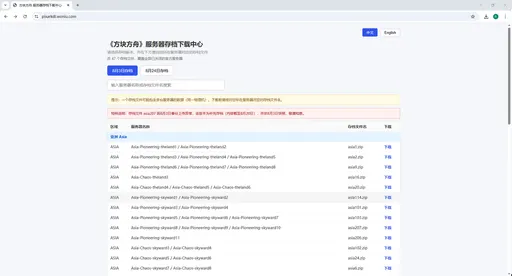
PixARK players can now download save files from all 104 retired legacy official servers, but the download service stays open for only one month, until September 24, 2026 (Beijing Time, UTC+8). The saves are packaged into 47 archive files, all available from the PixARK Server Save Download Center.
The legacy official servers were retired on August 23–24, 2026 (7 p.m. PDT / 10 p.m. EDT on August 23; 2 a.m. UTC / 10 a.m. Beijing on August 24). The new-server launch support events — Treasure Dodos and Lucky Bag Beacons — end with the update scheduled for August 25–26 (11 p.m. PDT on August 25; 2 a.m. EDT / 6 a.m. UTC / 2 p.m. Beijing on August 26).
Choose between two snapshots
- August 3 Snapshot: Taken one day before the new servers opened on August 4, preserving the world as it appeared before the transition.
- August 24 Final Snapshot: Taken on the legacy servers' final day of operation, preserving their world state at shutdown. Because some players transferred items and dismantled structures before shutdown, some buildings may already be missing from this snapshot. Choose the August 3 snapshot for a more complete record of your original base.
At the download center, select a snapshot, find your server by name in the table, and download the matching archive. A single archive may contain saves for multiple servers hosted on the same physical machine, so verify the server name before downloading.
Importing a server save into single-player
Before importing anything, back up your current local save data — these steps can overwrite an existing single-player save.
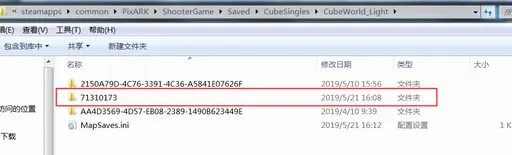
- Find the right directory. PixARK Map (CubeWorld) saves use
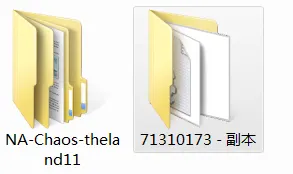
...\CubeSingles\CubeWorld_Light; Skyward Map (Skypiea) saves use...\CubeSingles\Skypiea_Light. A save placed in the wrong directory won't be recognized. - Extract and rename. Download and extract the correct archive, which contains two folders. If the folder you need ends with the Chinese suffix
-副本(meaning "copy"), remove the suffix and keep only the numeric ID — for example,71310173-副本→71310173. Otherwise, the game may not recognize it. - Prepare the save directory. If you've never created a single-player character on that map, launch PixARK → Single Player → select the corresponding map → create a character → exit the game; the game automatically creates the map's save directory. If you've played that map before, the directory already exists.
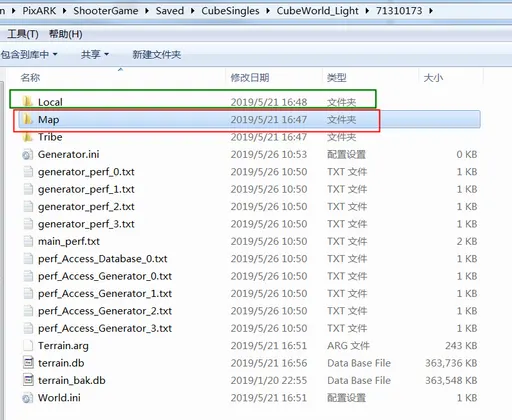
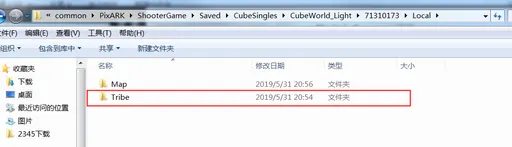
- Place the server save folder. Copy the numeric folder into
CubeWorld_Light(orSkypiea_Light). Open it and check for aLocalsubfolder; if it doesn't exist, create one. Move theMapandTribefolders intoLocal. IfLocalalready containsMapand/orTribefolders from a previous import, back them up before overwriting. - Register the map in MapSaves.ini. Add a line in this format:
numeric-folder-name=map-name— for example,71310173=ServerSaveTestMap. The left side is the imported folder's numeric name; the right side is the map name you'll see in game (English letters or numbers recommended). IfMapSaves.inidoesn't exist, createMapSaves.txt, add the entry, then rename the file extension to.ini(enable File Explorer's file name extensions view if needed). - Launch the game. Open PixARK → Single Player → Normal or Creative Mode → select the map name you added → enter the world. Bases may not load immediately; approach the area once to trigger them. If you still don't see your base, teleport to your original server character's location and respawn there to load the base.
Useful console commands
Press Tab or the backtick key (` ``) to open the command console.
ForcePlayerToJoinTargetTribe 0— join the tribe associated with the structure under your crosshair. Aim at a functional structure such as a door, window, or workbench to access all structures owned by that tribe.Cheat enablespectator— enter Spectator Mode and fly freely above the map.Stopspectating— exit Spectator Mode and allow your character to respawn.Cheat ghost— enable ghost/flying mode.Setcheatplayer true— display the XYZ coordinates of your current location.Cheat setplayerpos x y z— teleport to the specified coordinates.